Organization Setup
Setting Up Your Organization
When you create a new SenseiiWyze account, you'll need to set up your organization. This is where your team members, programs, and data will live.
What is an Organization?
An organization in SenseiiWyze represents your company or team. It provides:
- A shared space for all team members
- Centralized billing and subscription management
- Organization-wide settings and configurations
- A unique invite code for adding team members
Organization Setup Steps
Step 1: Organization Details
You'll be asked to provide:
- Organization Name: Your company or team name
- Organization Size: Helps us customize your experience
- 1-10 employees
- 11-50 employees
- 51-200 employees
- 201-500 employees
- 500+ employees
Step 2: Choose Your Plan
Select a subscription plan that fits your needs:
| Plan | Best For | Features |
|---|---|---|
| Starter | Small teams | Core features, basic analytics |
| Professional | Growing organizations | Advanced analytics, team features |
| Enterprise | Large organizations | Custom features, dedicated support |
See Plans & Pricing for detailed comparisons.
Step 3: Add Team Members
Choose how to add your team:
- Manual Entry: Add users one at a time
- CSV Import: Upload a spreadsheet of users
- Excel Import: Import from .xlsx files
- Skip for Now: Start with just yourself and add users later
Learn more about inviting users.
Your Organization Invite Code
After setup, you'll receive a unique invite code. This code allows team members to join your organization during signup.
Important: Keep your invite code secure. Anyone with the code can join your organization (though you can always remove unauthorized users).
You can find and manage your invite code in:
- The team management page
- Organization settings
See Invite Codes for more details.
Organization Roles
The person who creates the organization becomes the Admin-Executive, with full administrative privileges including:
- Billing and subscription management
- User management (invite, remove, change roles)
- Organization settings
- All other administrative functions
Learn about user roles and permissions.
Changing Organization Settings Later
After initial setup, you can modify:
- Organization name and details
- Subscription plan
- Billing information
- Team member roles
Access these options through Settings in the main navigation.
Multiple Organizations
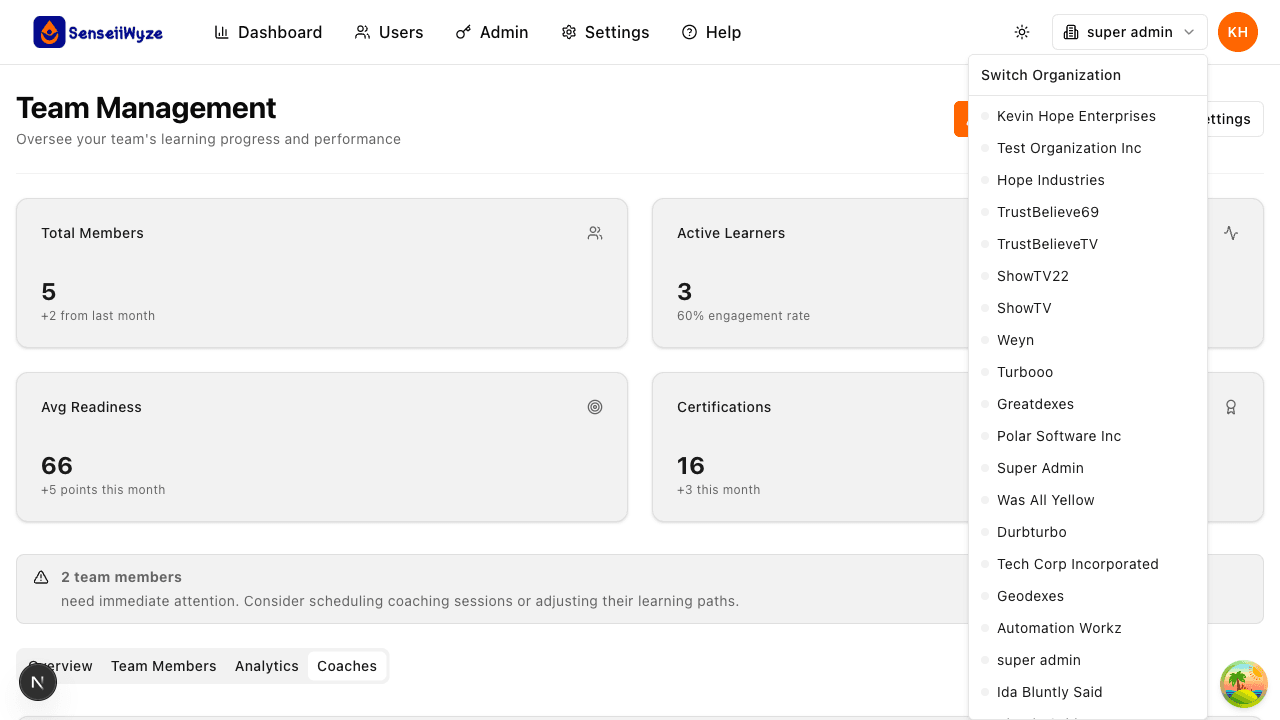
Currently, each user account belongs to one organization. If you need to manage multiple organizations, you'll need separate accounts for each.
Need Help?
If you encounter issues during organization setup:
- Check our Troubleshooting Guide
- Contact support at support@senseiiwyze.com
- Call us at 313-444-4885 (Mon-Fri, 9 AM - 5 PM EST)