Invite Codes
Invite Codes
Invite codes allow team members to join your organization without individual email invitations.
What is an Invite Code?
An invite code is a unique alphanumeric code that:
- Allows anyone with the code to sign up
- Automatically adds them to your organization
- Assigns a default role (typically Member)
- Doesn't require you to know their email in advance
Example format: WYZE-A1B2C3
When to Use Invite Codes
Invite codes are ideal for:
- Large teams - Easier than inviting hundreds individually
- Events - Quick onboarding for training sessions
- Distributed teams - Share via Slack, email, or intranet
- Self-service signups - Let HR share a code company-wide
Getting Your Invite Code
- Click Users in the main navigation
- Click Invite Members
- Your organization code is displayed at the top of the modal
- Click the copy icon to copy the code
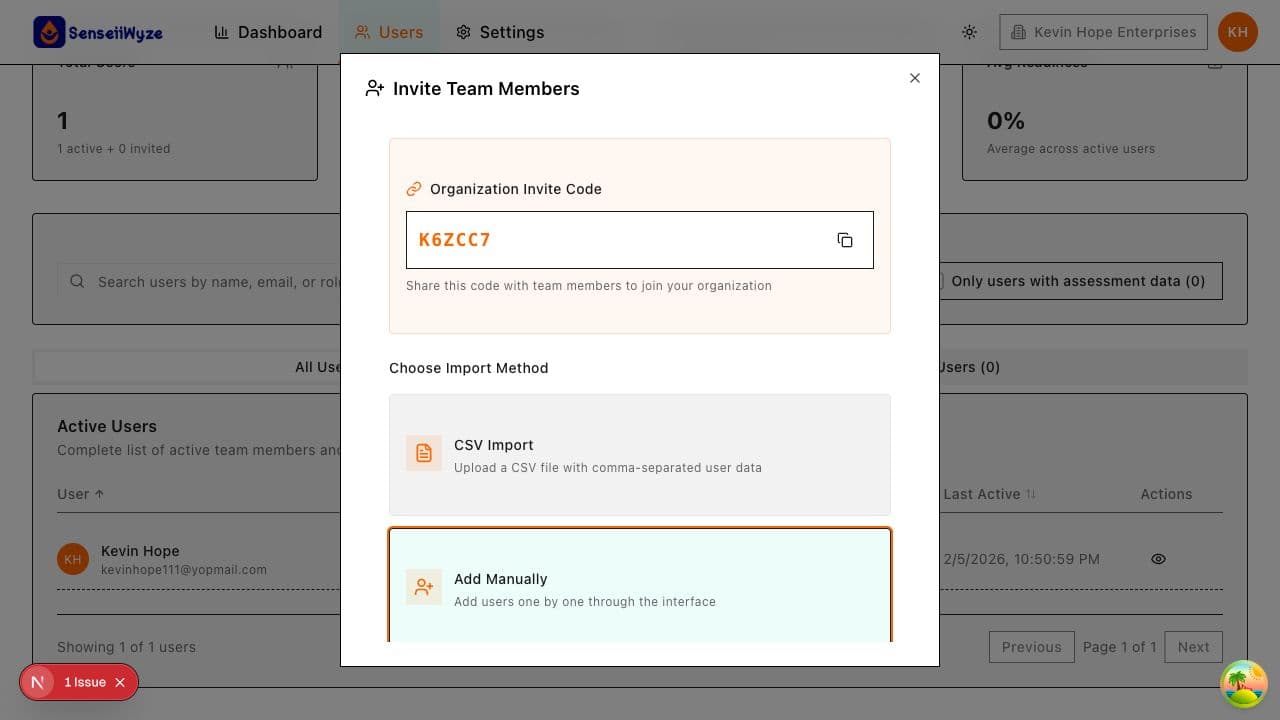
Sharing Your Code
Share your invite code through:
- Email - Include in welcome emails or announcements
- Slack/Teams - Post in company channels
- Intranet - Add to employee resources
- Documentation - Include in onboarding materials
Example message:
Join our SenseiiWyze team! Sign up at senseiiwyze.com/signup and use invite code: WYZE-A1B2C3
Default Settings
Users who sign up via invite code:
| Setting | Default Value |
|---|---|
| Role | Member |
| Team | Unassigned |
| Department | Unassigned |
Administrators can change these settings after the user joins.
Managing Your Invite Code
Viewing Usage
See who has used your invite code:
- Go to Users
- Filter by Joined via: Invite Code
- View the list of users who used the code
Regenerating Your Code
If your code is compromised or widely shared outside your organization:
- Go to Users
- Click Invite Members
- Click Regenerate Code
- Confirm the action
Warning: Regenerating invalidates the old code immediately. Anyone with the old code won't be able to sign up.
Disabling Invite Codes
To prevent all self-service signups:
- Go to Settings > Security
- Toggle Allow Invite Codes off
- Save changes
Users will only be able to join via direct email invitation.
Seat Management
Invite code signups consume seats just like regular invitations:
- Each signup uses one available seat
- If you run out of seats, new signups fail
- Monitor your seat usage in Settings > Billing
Tip: Set a seat buffer before sharing codes widely to avoid failed signups.
Security Considerations
Best Practices
- Don't post publicly - Only share within your organization
- Regenerate periodically - Rotate codes quarterly
- Monitor signups - Review new users regularly
- Set expectations - Communicate the expected audience
If Your Code is Compromised
- Regenerate immediately - Get a new code
- Review recent signups - Check for unauthorized users
- Remove unauthorized users - Delete any who shouldn't have access
- Investigate - Determine how the code was leaked
Invite Codes vs. Email Invitations
| Feature | Invite Code | Email Invitation |
|---|---|---|
| Effort | Low - share once | Medium - per user |
| Control | Less - anyone can use | More - specific users |
| Role assignment | Default only | Custom per user |
| Tracking | By code usage | By invitation |
| Best for | Large groups | Individual additions |
Troubleshooting
"Invalid invite code"
- Check for typos - codes are case-sensitive
- The code may have been regenerated
- Ask your admin for the current code
"Seat limit reached" The organization has used all available seats. Contact your administrator.
"Invite codes disabled" Your organization has disabled self-service signup. Request a direct invitation from an administrator.
Need Help?
- Inviting Users - Alternative invitation methods
- User Roles - Understanding default roles
- Billing & Seats - Managing seat limits