Getting Started
First Steps
Your First Steps in SenseiiWyze
Congratulations on setting up your account! Here's what to do next to get the most out of SenseiiWyze.
For Organization Administrators
If you created or manage an organization, follow these steps:
1. Complete Your Profile
- Navigate to Settings > Profile
- Add your job title and bio
- Upload a profile picture
- Set your notification preferences
2. Invite Your Team
Your organization isn't complete without your team. Add members by:
- Sharing your invite code (found in Settings)
- Sending email invitations directly
- Bulk importing via CSV or Excel
See Inviting Users for detailed instructions.
3. Understand the Dashboard
The Executive Dashboard is your command center. It shows:
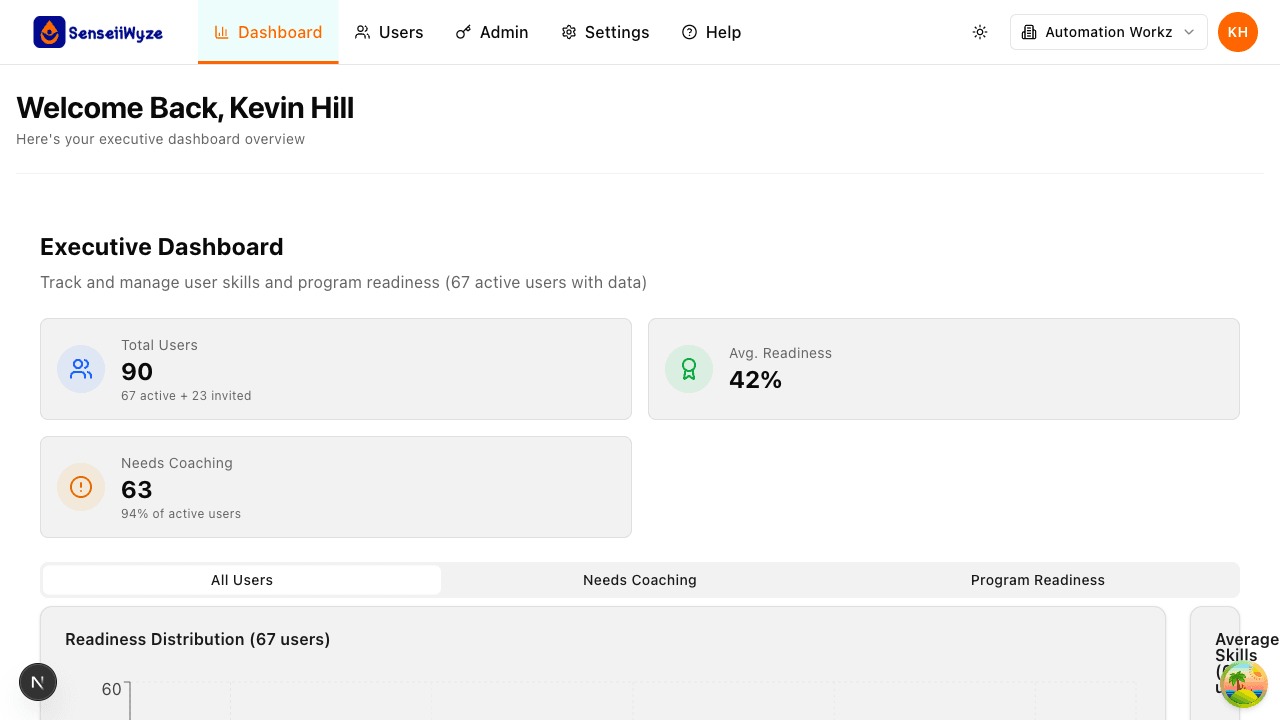
- Total Users: Active and invited team members
- Active Users: Currently engaged team members
- Invited Users: Pending invitations
- Program Progress: Overview of program completion
For Team Members
If you joined an existing organization:
1. Complete Your Profile
- Go to Settings > Profile
- Add your professional information
- Set your preferences
2. Explore Your Dashboard
Your personal dashboard shows:
- Your progress and activity
- Assigned programs
- Upcoming tasks and assessments
3. Complete Initial Assessments
To appear on your organization's dashboard and get personalized recommendations:
- Complete any assigned assessments
- Fill out your vision board
- Review your program assignments
Understanding the Interface
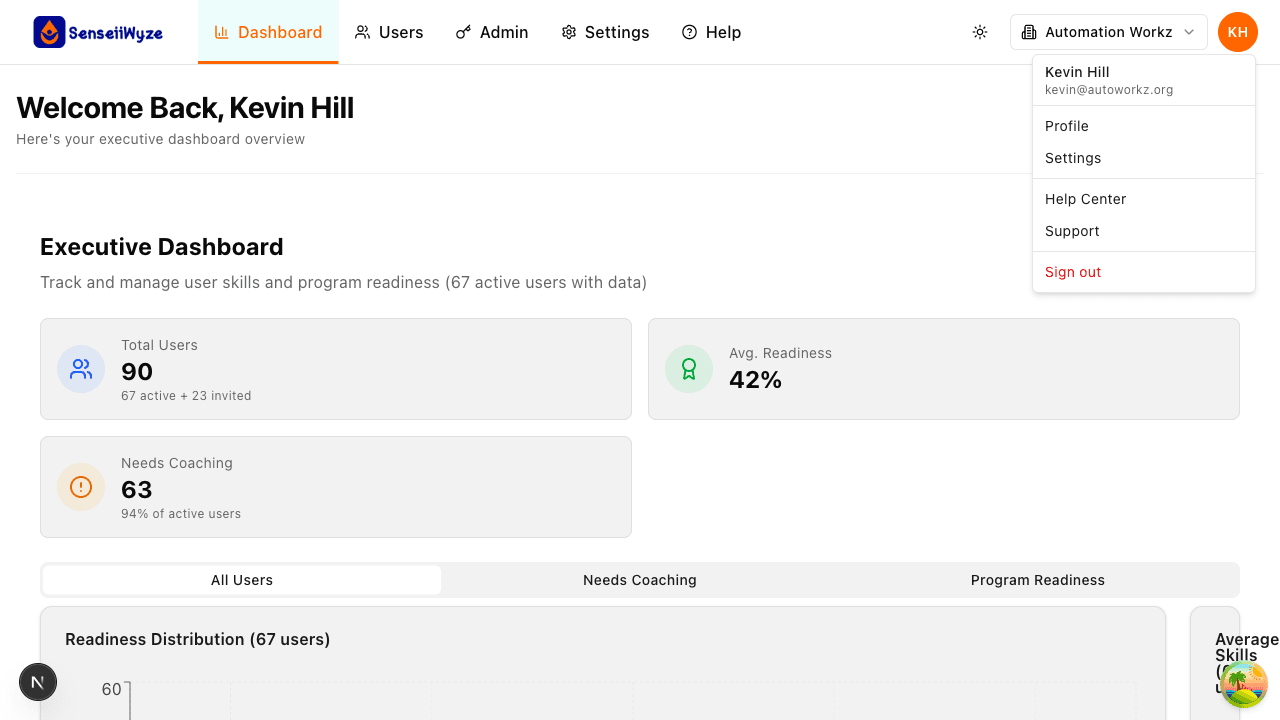
Main Navigation
| Section | What You'll Find |
|---|---|
| Dashboard | Overview of metrics and user data |
| Users | User management (admins only) |
| Settings | Profile, billing, preferences |
| Help | Documentation and support |
Key Features
- Search: Find users by name, email, or department
- Filters: Narrow down user lists by status or role
- Tabs: Switch between different views (Active Users, Invited Users, etc.)
Quick Tips
- Bookmark key pages: Save time by bookmarking frequently used pages
- Use keyboard shortcuts: Press
?to see available shortcuts - Check notifications: Stay updated on team activity and system alerts
- Set your theme: Choose light or dark mode in Settings
What's Next?
Depending on your role, explore these guides:
For Administrators:
For Team Members:
For Everyone:
Need Help Getting Started?
- Review our video tutorials (coming soon)
- Contact your organization administrator
- Reach out to our support team at support@senseiiwyze.com