User Management
Managing Invitations
Managing Invitations
Keep track of pending invitations and take action when needed.
Viewing Pending Invitations
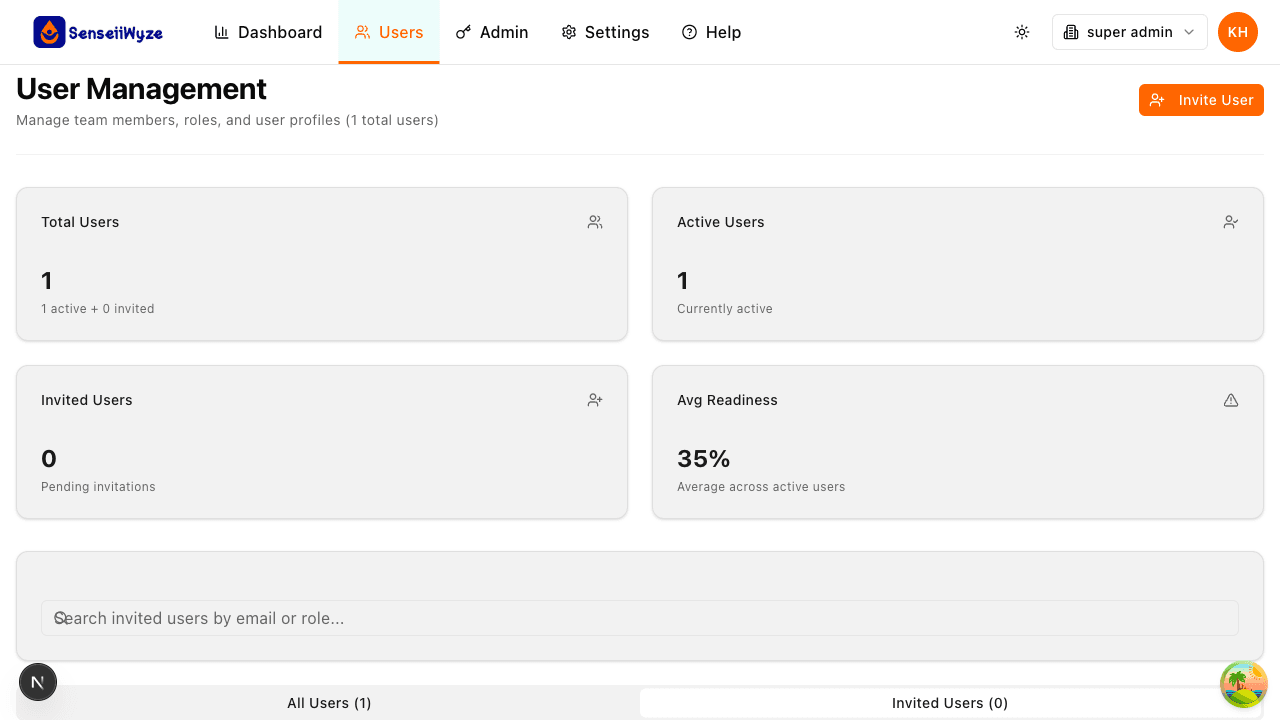
- Click Users in the main navigation
- Click the Invited tab
- View all pending invitations
Invitation Information
For each pending invitation, you'll see:
| Column | Description |
|---|---|
| The invited user's email address | |
| Role | The assigned permission level |
| Invited By | Who sent the invitation |
| Date Sent | When the invitation was sent |
| Status | Pending, Expired, or Resent |
| Actions | Resend or Cancel buttons |
Invitation Statuses
| Status | Meaning |
|---|---|
| Pending | Invitation sent, awaiting acceptance |
| Expired | Past the acceptance deadline (typically 7 days) |
| Resent | Invitation was resent to the user |
| Accepted | User has signed up (moves to Active) |
| Cancelled | Invitation was withdrawn |
Resending Invitations
If a user hasn't accepted their invitation:
- Go to Users > Invited
- Find the user's invitation
- Click Resend
- Confirm the action
The user receives a new email with a fresh signup link.
Best practices for resending:
- Wait at least 24 hours before the first resend
- Check if the email was delivered (ask the user)
- Verify the email address is correct
- Consider calling/messaging the user directly
Cancelling Invitations
To withdraw an invitation:
- Go to Users > Invited
- Find the invitation
- Click Cancel or the trash icon
- Confirm the cancellation
What happens when you cancel:
- The invitation link becomes invalid
- The email doesn't disappear, but clicking the link shows an error
- The seat is freed up for other invitations
- No notification is sent to the invited user
Editing Pending Invitations
To change details before a user accepts:
- Cancel the existing invitation
- Create a new invitation with correct details
You cannot directly edit a pending invitation's role or other details.
Bulk Actions
For managing multiple invitations:
- Go to Users > Invited
- Select invitations using checkboxes
- Choose an action:
- Resend All - Resend selected invitations
- Cancel All - Cancel selected invitations
Invitation Expiration
Invitations expire after 7 days by default:
- Expired invitations remain visible in the list
- They're marked with an Expired status
- The signup link no longer works
- You can resend to generate a new valid link
Monitoring Invitation Health
Signs of Problems
- Many invitations stuck in "Pending" for days
- High rate of expired invitations
- Users reporting they never received emails
Troubleshooting Steps
- Check spam filters - Have users check spam/junk folders
- Verify email domain - Ensure your email domain isn't blocked
- Test with yourself - Invite a test email to verify delivery
- Contact IT - Work with IT to whitelist SenseiiWyze emails
Invitation Reports
Track invitation metrics:
- Go to Analytics > User Metrics
- View invitation statistics:
- Total invitations sent
- Acceptance rate
- Average time to accept
- Expired invitation count
Best Practices
- Follow up quickly - Contact users who haven't accepted within 3 days
- Set expectations - Tell users to expect an invitation email
- Provide context - Let users know what SenseiiWyze is before inviting
- Clean up regularly - Cancel stale invitations to keep your list tidy
Seat Implications
Remember that pending invitations use seats:
- Each pending invitation = 1 seat used
- Cancelling an invitation frees the seat
- Expired invitations still hold seats until cancelled
- Monitor your seat usage to avoid surprises
Need Help?
- Inviting Users - How to send new invitations
- User Roles - Understanding role assignments
- Troubleshooting - Common email delivery issues