Account
Updating Your Profile
Updating Your Profile
Keep your profile information up to date for the best experience.
Accessing Your Profile
- Click on your avatar in the top-right corner
- Select Settings from the dropdown menu
- Navigate to the Profile tab
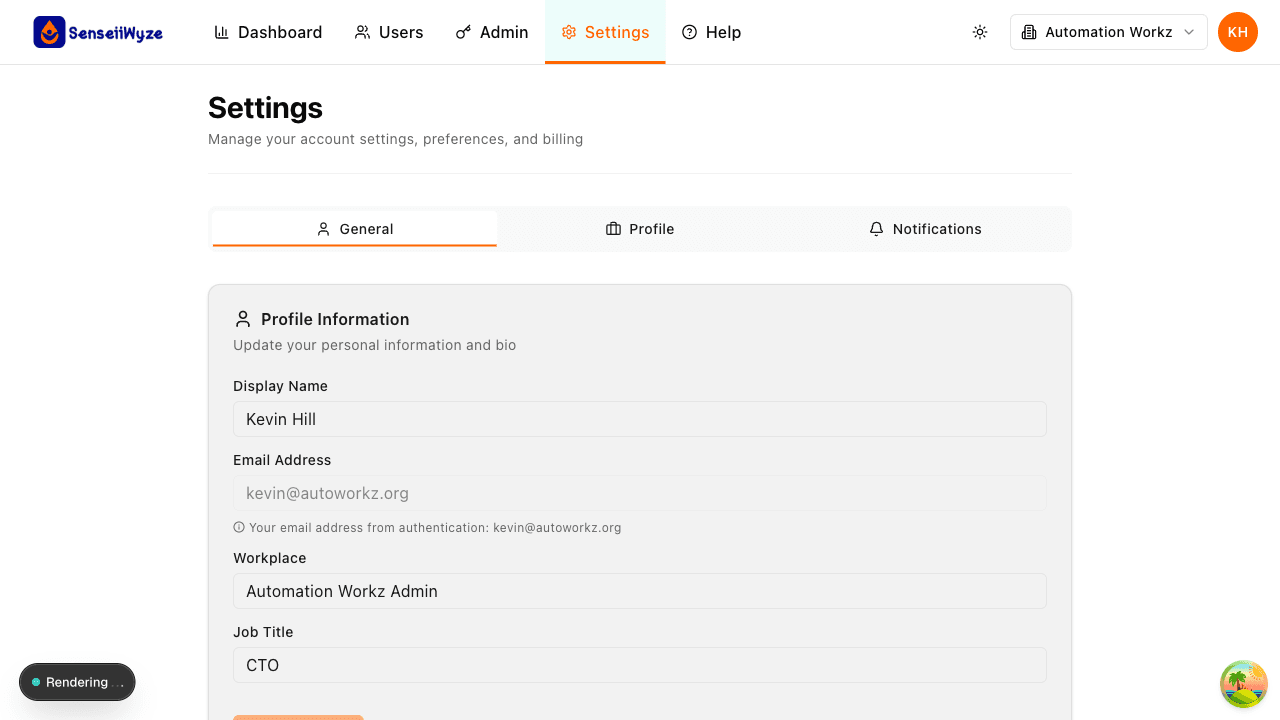
What You Can Update
Personal Information
- Display Name: How your name appears to others
- Email Address: Your primary contact email
- Phone Number: Optional contact number
Changing your email address will require verification of the new address.
Profile Picture
- Click on your current profile picture or the placeholder
- Upload a new image (JPG, PNG, or GIF)
- Crop and adjust as needed
- Click Save
Recommended size: 200x200 pixels or larger
Job Information
Some fields may be managed by your organization:
- Job Title
- Department
- Location
- Manager
Contact your administrator to update organization-managed fields.
Saving Changes
After making changes, click the Save Changes button at the bottom of the form. You'll see a confirmation message when your profile is updated.