Import Errors
Import Errors
Resolve issues when importing users via CSV or Excel files.
Common Import Errors
"Invalid file format"
Cause: The uploaded file isn't in the expected format.
Solutions:
- Ensure you're uploading a
.csvor.xlsxfile - Don't upload
.xls(old Excel format) - Don't upload PDFs, text files, or other formats
- Download and use our template
"Missing required columns"
Cause: The file is missing required fields.
Solutions:
- Ensure your file has these columns:
email(required)name(required)role(required)
- Column headers must match exactly
- Don't rename column headers
- Use our template as reference
"Invalid email format"
Cause: One or more email addresses are invalid.
Solutions:
- Check for typos in email addresses
- Ensure proper format:
name@domain.com - Remove extra spaces before/after emails
- Check for special characters
Common email issues:
- Missing
@symbol - Missing domain (e.g.,
.com) - Spaces in email addresses
- Special characters
"Duplicate email"
Cause: An email already exists in the system.
Solutions:
- The user may already be in your organization
- Check Users list for existing account
- Remove duplicate from import file
- If they're in another organization, they need a different email
"Invalid role"
Cause: The role value isn't recognized.
Solutions: Valid role values are:
admin-executiveadmin-managermemberlearner
Common mistakes:
- Using "Admin" instead of "admin-executive"
- Misspelling role names
- Using role display names instead of values
"Seat limit reached"
Cause: Importing would exceed your plan's seat limit.
Solutions:
- Check available seats in Settings > Billing
- Import fewer users
- Delete inactive users to free seats
- Upgrade your plan for more seats
"File too large"
Cause: The import file exceeds size limits.
Solutions:
- Maximum file size is 5MB
- Split into multiple smaller files
- Remove unnecessary columns
- Compress the file
"Empty file"
Cause: The uploaded file has no data rows.
Solutions:
- Ensure data exists below the header row
- Check that you're uploading the correct file
- Verify the file isn't corrupted
- Re-save from your spreadsheet
CSV-Specific Issues
"Encoding error"
Cause: File uses unsupported character encoding.
Solutions:
- Save as "UTF-8 CSV" in Excel
- In Google Sheets: Download as CSV (auto UTF-8)
- Avoid special characters in names if issues persist
"Delimiter issues"
Cause: Wrong separator used in CSV.
Solutions:
- We expect comma-separated values
- Check your regional settings (some use semicolons)
- Open in text editor to verify commas separate columns
- Re-export with comma delimiter
Excel-Specific Issues
"Wrong sheet"
Cause: Data is on wrong sheet or multiple sheets.
Solutions:
- Put data on the first sheet
- Only use one sheet for import
- Remove other sheets before uploading
"Formula errors"
Cause: Cells contain formulas with errors.
Solutions:
- Resolve all #REF!, #N/A, etc. errors
- Convert formulas to values:
- Select all → Copy → Paste Special → Values
- Ensure no hidden formulas
Preparing a Successful Import
Step 1: Use the Template
- Click Invite Members > Import
- Click Download Template
- Open in Excel or Google Sheets
- Fill in your data
Step 2: Clean Your Data
Before importing, check for:
| Issue | How to Fix |
|---|---|
| Extra spaces | Trim cells |
| Empty rows | Delete them |
| Missing data | Fill required fields |
| Invalid emails | Correct or remove |
| Duplicate rows | Remove duplicates |
Step 3: Validate Format
- File type: CSV or XLSX
- Encoding: UTF-8
- Headers: Match template exactly
- Data: Starting from row 2
Step 4: Test Small
- First import 5-10 users
- Verify they appear correctly
- Check roles assigned correctly
- Then import the full list
Partial Import Failures
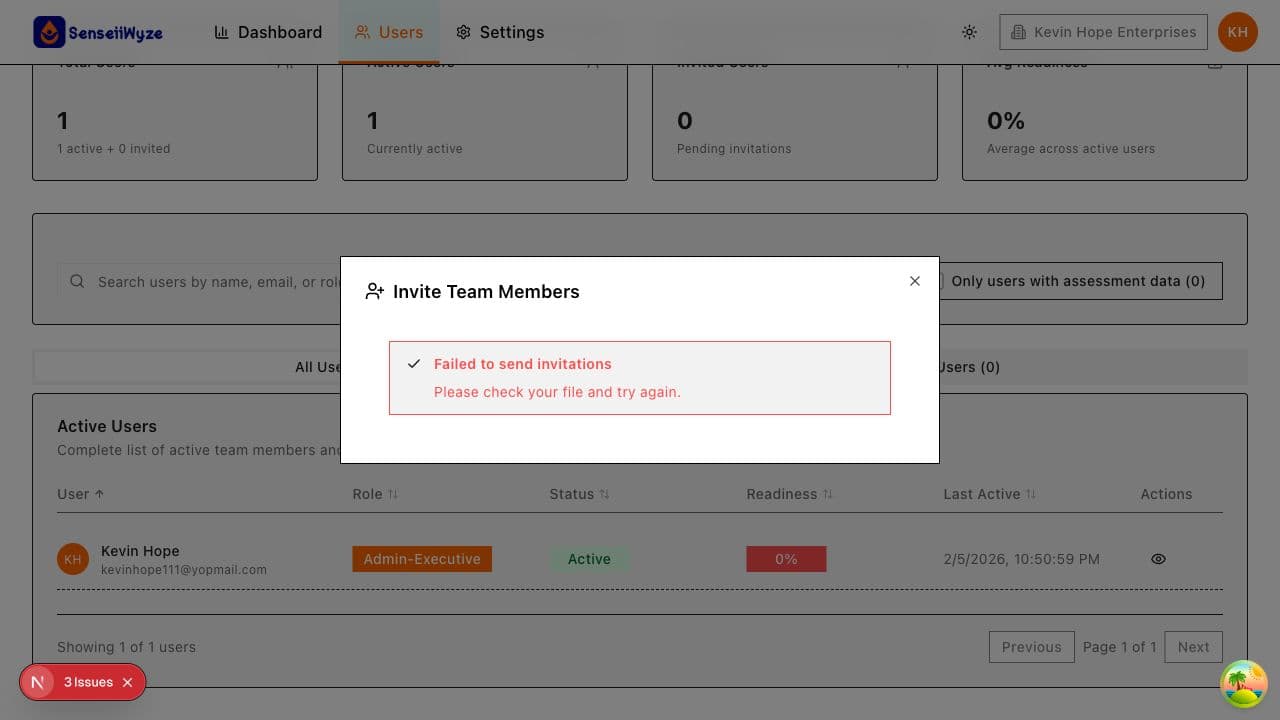
Sometimes imports partially succeed:
- Some rows import successfully
- Others fail with errors
- You'll see a summary of results
To fix:
- Note which rows failed
- Fix issues in those rows
- Create new file with just failed rows
- Re-import the corrected file
Import File Template
Required columns:
email,name,role
john@company.com,John Smith,member
jane@company.com,Jane Doe,admin-manager
Optional columns:
email,name,role,department,team
john@company.com,John Smith,member,Sales,West Region
jane@company.com,Jane Doe,admin-manager,HR,
Best Practices
- Always use the template - Ensures correct format
- Start small - Test with few users first
- Clean data first - Prevent errors upfront
- Backup your file - Keep original before editing
- Check seat availability - Ensure room before importing
Need Help?
- Inviting Users - Alternative methods
- Seat Management - Managing seat limits
- Common Errors - Other error messages
- Contact support: support@senseiiwyze.com